NetCIL CILR Data Collection Protocol
For use with the California Independent
Living Quarterly Reporting Spreadsheet
Revised: 5/22/2012
Table of Contents
How
to record data for the California Independent Living Report:
Tab
– Community Change Achievements:
These instructions describe the methods that should be used to
collect data via the CFAL database system for reporting to the California
Department of Rehabilitation. Following these instructions will ensure the
accuracy of the statistics that you provide to the California DoR via the new
California Independent Living Report Excel spreadsheet. These instructions are also compatible with the
data collection procedures that are required for RSA/704 use.
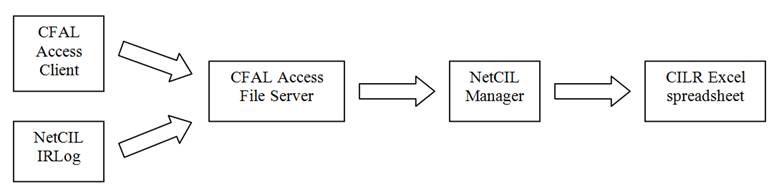
The CFAL-NetCIL database system is comprised of four major
components. All data is stored in a Microsoft Access database file server that
resides in a shared folder on your network. Most data entry is performed via a
second Microsoft Access client application that is installed on each
workstation that runs CFAL. Each client application connects to the network
file server.
You should ensure that your software and database configurations
are up to date. If you need assistance
with upgrades please contact ed2c customer support toll-free at (888) 335-8600
x0 or by sending e-mail to techsupport@ed2c.com.
Two new-technology applications called NetCIL
are designed for use with CFAL. Both are written using Microsoft .Net
application software. NetCIL
IRLog is an application that is designed to perform quick intakes and to log
anonymous I&R requests. The use of IRLog is
optional. NetCIL Manager is a second .Net application that will generate the
CILR spreadsheet and other agency reports such as the RSA/704. You must use
NetCIL Manager in order to generate these reports.
The following diagram illustrates the
flow of data using CFAL and NetCIL to generate a CILR spreadsheet:
Before you begin data entry, please consider the following NetCIL Client database concepts:
1. Definition of a Consumer
People in the CFAL database are categorized by their Contact Type. Contact type can be set on the People form or the NetCIL IRLog application. When you first begin to interact with
someone, it’s usually because they are seeking information and referral
assistance; therefore when a new person is entered into the NetCIL
Client database, their contact type defaults to Information and Referral. When you develop a CSR for someone, they then become a Consumer, and you should set their Contact
Type accordingly. To do so, you must provide the necessary demographics
required by the State of California and RSA. If some mandatory information is
missing, a message will appear, showing the missing fields and the contact type
will be reset to “Information & Referral”. If all mandatory fields are
filled out, once you set the contact type to “Consumer”, a note will be
automatically be posted saying that the “Person becomes a consumer” and the
date field will automatically be filled out with today’s date. This can be
changed to reflect the actual CSR. Please note that the date entered will
determine whether the consumer is “New” or “carried over” during the reporting
period. Once set, the database will never automatically change a person’s
contact type.
2. Definition of Transactions
Every case note, work log entry, provision of service, or goal is
considered by the NetCIL Client database to be a
transaction. Each transaction has an associated
date, which normally will be written automatically as the current date and time
when a record is entered. You can always
edit the dates of any of your records.
In order for statistics regarding these transactions to be included in a
report, the transaction dates must fall within the reporting period as
described below.
3. Definition of Assistive Technology (AT)
Any person in the NetCIL Client database
whose contact type is set to AT Consumer
will automatically be counted in all AT statistics. All other people who receive services during
a reporting period will also be included if any of those services are
designated AT. In order for a service to
be counted in the AT category, the State field for the service must be set to Assistive Technology in the Services Configuration form, which is
accessible via the NetCIL Manager, in the Config
tab.
Community Activities and Consumer Goals can be designated as
AT-related by checking the AT box on the corresponding form. All work log entries on projects that are
associated with AT goals will also be included in AT statistics.
How
to record data for the
(B) Active Consumers Carried Over from Prior
Year
To be
counted in this category, an individual has the following criteria:
-
Contact Type must be set to Consumer or AT Consumer
-
A service must be recorded in either the Notes or Referrals form in the year
prior to the reporting period.
(C) Carry Over Consumers Served
in Reporting Year
To be
counted in this category, an individual has the following criteria:
-
Contact Type must be set to Consumer, Inactive Consumer or AT Consumer
-
A service must be recorded in either the Notes or Referrals form in the year prior
to the reporting period.
-
A service must be recorded in either the Notes or Referrals form in the current
reporting year.
(D) New Consumers
Started Since Beginning of Reporting Year
To
be counted in this category, an individual has the following criteria:
-
Contact Type must be set to Consumer, Inactive Consumer or AT
Consumer
-
The Initial
Entry date or the Person becomes a
Consumer* date is within the current
reporting year.
-
A service must be recorded in either the Notes or Referrals in the current
reporting year.
Or:
-
A consumer has an Initial Entry date earlier than the previous year and has a service recorded in the current reporting year.
*Please note that if an individual starts as an Information and Referral contact and
then becomes a Consumer at a later
date, an automatic note will be written saying that the Person becomes a Consumer and will be associated with a date. For reporting purposes, this date will now
determine whether this person is reported as a Carried Over or a New consumer.
Even if no transactions are recorded during a period, a consumer
will always be listed as active
unless you specifically de-activate
them.
To de-activate a
consumer:
1.
Retrieve
the consumer record using the People form - change Contact Type to Inactive Consumer and select Enter or Tab.
2.
A
new window will automatically open.
Select a Reason for Deactivation
and an applicable Date so that the
reason will be properly recorded. If no
reason is selected, Other
will be assumed.
3.
This
process will automatically add a note Consumer
becomes inactive in the consumer’s history record with the reason for
deactivation and the selected date.
The date that you specify will determine whether or not a consumer
is listed as inactive for a given reporting period. For example, if a consumer is listed as inactive but the date of deactivation is
after the end date of a report, the consumer will still be listed as active for that report.
Once a de-activation
note is written, the consumer will be listed as inactive for all reports that
end after the date of deactivation. If a
consumer re-activates change their
contact type back to Consumer or AT Consumer. A new note will
automatically appear, and the category Consumer
Re-activates will be selected. The
consumer will then be listed as active for all reporting periods during which
the consumer was once again active. A
consumer that has been de-activated and re-activated during the reporting
period will be shown as active for the entire period.
To record the development of a consumer plan, or the signing of a
waiver:
1.
Retrieve
the consumer record using the People form.
2.
Check
either the Independent Living Plan
Developed or the Waiver Signed
check box as appropriate. A case note
will automatically be written and displayed with the appropriate category and
the current date. Edit as required.
Only the most recent plan or waiver is considered when calculating
the Plans Written and Plans Waived totals.
Age is
calculated automatically based on date of birth and the end date of a
report. If date of birth is unknown and
you want to change the contact type to “Consumer”, a warning message will
appear to let you know that the age is missing and the “Contact type” will be
reset to “Information & Referral” until you make the appropriate changes.
If you don’t know the exact date of birth, just enter an approximate age in the
field, the date of birth will be set to 1/1/yyyy as a convention and the “Est”
(estimated) check box will be automatically checked.
If gender is set to Trans/Unknown and you
want to set the contact type to “Consumer”, a warning message will appear to
let you know that the gender must be set to either male or female and the
“Contact type” will be reset to “Information & Referral” until you make the
appropriate change.
Select the appropriate ethnic group from the dropdown box. If no race is selected when trying to change
the contact type to “Consumer”, a
warning message will appear to let you know that the race is missing and the
“Contact type” will be reset to “Information & Referral” until you make the
appropriate change.
Note:
Report numbers of consumers served in each category. Each consumer may be counted under ONLY ONE
category, even if she/he self-identified more than one race and/or ethnicity. Report all who identify as Hispanic/Latino in
that category ONLY and only Non-Hispanic/Latino consumers in the other
categories.
Tab
– Disability:
A consumer’s primary disability determines how they are reported.
Each disability will be reported according to its associated RSA/704 category.
The disabilities must be configured in NetCIL Manager
under the “Config” tab. Make sure you list all
disabilities and associate them with the corresponding RSA/704 column. The TBI,
LD, and DD categories will be calculated according to the state settings.
In order for these
disabilities to be properly reported on the CILR spreadsheet, each must be
associated with a standard RSA/704 category and State category (TBI, LD, and
DD).
Try to select a primary disability that best describes the
consumer’s condition according to one of the standard RSA/704 categories: Cognitive, Mental/Emotional, Physical,
Hearing, or Vision. If the consumer’s
condition is a combination of any of these main categories, list their primary
disability as Multiple. Any other primary disability will be listed
in the Other
category.
Section A Subpart III of the 2006 RSA 704
report now distinguishes between services requested and services received. In
order to maintain compatibility with the 704 Report, NetCIL
Client and NetCIL I&R Log now differentiate the
two circumstances as follows:
1. For a single instance of a service
provided on a single date, write a note (Notes
button on the NetCIL Client People form) and specify
the service in the Services dropdown
edit box. All such services will be included in the totals for individual
services.
For service requests that have not yet been fulfilled, make an
entry in the Referrals section of
either the People form of NetCIL Client or NetCIL IRLog application. In
such cases ensure that a Referral to
Staff entry is made or the completion date is left blank so that NetCIL Client can alert the appropriate staff member about
the request. On the Main form, all open referrals will
be listed. In order to close the Referral, a Completion Date must be entered
either directly on the “Main” screen or in the Referrals section on the
“People” form.
2. NetCIL IRLog will
automatically write an open service request whenever a Referral to Staff record is written. All Service and Referral
records for which the Completion Date
is blank will be considered to be open
referrals, and they will not be
counted in the individual service totals in the spreadsheet. Please refer to
the updated RSA 704 data collection protocol for more information.
You can configure your own list of services through the NetCIL
Manager under the Config tab. In
order for these services to be properly reported on the CILR spreadsheet, each
must be associated with a standard RSA/704 category and State category (AT or
other).
For all categories except Information
& Referral, the number reported in the spreadsheet represents the distinct
count of consumers that have received a given service as noted above
(unduplicated number). The Information
& Referrals column reports a distinct count of any contact type and also
includes a duplicated count of any anonymous I&R services recorded using
the NetCIL IRLog.
To record an achievement, perform the following steps:
1.
Retrieve
the consumer record using the People form.
2.
Open
the Consumer Goals & ILP form.
3.
Select
the Type of Goal from the list that
most closely describes what the consumer wants to accomplish. For compatibility
with 704 reporting, Mobility /
Transportation are divided into two separate goal types. These goals will
be combined for California reporting in the Mobility
/ Transportation column. Any goal that does not specifically correspond to
a column in the spreadsheet will be reported as Other.
A goal is considered Set
if its Goal Start Date is before the
end of the reporting period and the goal’s Actual
End Date is blank or after the beginning of the reporting period.
A goal is considered Met if the Actual End
Date is within the reporting period and the goal’s Outcome is not Dropped.
The Target End Date
field in CFAL is for reference purposes only.
Identify the goal as AT if
appropriate for reporting in the AT
Service Coordination (Tab 19) section of the spreadsheet report.
Be advised that only one goal per category
in the “Significant Life Area” will be counted on the State CILR report. For example, if a consumer sets 2 Educational goals, they will
only be counted once in that category. However if they set 2 goals, one in the
“Educational” significant life area category and the other one in the
“Community Based Living” category, both goals will be counted.
Tab –
Community Change Achievements:
1.
Press
the Community Activities button on
the Main form.
2.
Write
a new record, and select the category that most closely defines the goal in the
Goal Type (old 704) dropdown list.
A goal is considered Set
if its Goal Start Date falls before
the end of the reporting period and the goal’s Actual End Date is blank or after the beginning of the reporting
period.
A goal is considered Met if the Actual End
Date is within the reporting period and the goal’s Outcome is not Dropped.
The Target End Date
field is for reference purposes only.
Note that these categories are now obsolete for 704 reporting purposes.
Please refer to the RSA 704 Data Collection Protocol for more information.
There are two ways to record time spent on the provision of
Community Services:
Method 1:
1.
Press
the Work Log button on the Main form.
2.
Write
a new record, and select the category from the Community Service (old) dropdown list that most closely defines the
work that has been performed.
3.
Record
the time spent in the Hours dropdown
list. Note that all times are rounded to
the nearest fifteen minutes.
Method 2:
1.
Press
the Outreach button on the Main form.
2.
Write
a new record, and select the category from the Community Service dropdown list that most closely defines the work
that has been performed.
3.
Record
the time spent in the Hours dropdown
list. Note that all times are rounded to
the nearest fifteen minutes.
All hours recorded using either method will be totaled for the
reporting period and displayed in the appropriate column. Hours recorded for Education, Registries and
Publications will be totaled under
the Community Education & Public
Information column.
Note: If the new category Technical
Assistance does not appear in your dropdown list, add a record to the CommunityServices table and set
CommunityServiceID = 1, CommunityDesc = Technical
Assistance.
1. Press the Outreach button on the Main form.
2. Write a new record, and record the time
spent in the Hours dropdown
list. Note that all times are rounded to
the nearest fifteen minutes.
3. Select the AT checkbox.
4. Select the category Collaboration / Networking from the Community Service dropdown list or
select one of the Workshop / Training /
Presentation checkboxes in the Type
of Activity section. If you select
both a community service and indicate an activity type, hours will be reported
in both categories. If you report both categories it’s recommended that you
divide the total hours spent by two.
5. In the Materials
Distributed / How Many area of the Outreach
form, enter a value for the Number of
Handouts as appropriate. At your option, you can list the handouts as Brochures or Other. The values that you enter here will be reported in the Number of Contacts column in the
spreadsheet.
At your option, you can copy the information that you record in
the Outreach form to your work log by pressing the Copy to Work Log button. Any additional AT hours that you specify
as Collaboration / Networking
community services in the work log will be added to the Outreach totals that
are reported on the spreadsheet.
There are two ways to record time spent on the provision of AT General Outreach:
Method 1:
1. Press the Work Log button on the Main form.
2. Write a new record, and select the
category Outreach from the Community Service dropdown list.
3. Record the time spent in the Hours dropdown list. Note that all times are rounded to the
nearest fifteen minutes.
4. Select the AT checkbox.
Method 2:
1. Press the Outreach button on the Main form.
2. Write a new record, and select the
category Outreach from the Community Service dropdown list.
3. Record the time spent in the Hours dropdown list. Note that all times are rounded to the
nearest fifteen minutes.
4. Select the AT checkbox.
All hours recorded using either method will be totaled for the reporting
period and displayed in the General
Outreach column.
There are two ways to record time spent on the provision of AT
Targeted Outreach:
Method 1:
1. Press the Work Log button on the Main form.
2. Write a new record, and select the
appropriate category from the AT Targeted
Outreach dropdown list.
3. Record the time spent in the Hours dropdown list. Note that all times are rounded to the
nearest fifteen minutes.
Method 2:
1. Press the Outreach button on the Main form.
2. Write a new record, and select the
appropriate category from the AT Targeted
Outreach dropdown list.
3. Record the time spent in the Hours dropdown list. Note that all times are rounded to the
nearest fifteen minutes.
All hours recorded using either method will be totaled for the
reporting period and displayed in the corresponding AT Targeted Outreach column.
A consumer will be counted under the Total # AT Consumers column if:
1. The consumer’s contact type is set to AT Consumer
2. The consumer has received a service (see Individual Services section) designated
as an AT Service. Services can be set to
AT Services using the State Code drop down on the Config, Services tab of NetCIL Manager.
Any consumer goals set or met during the reporting period and
flagged as an AT Goal (see Significant
Life Area section) will be reported in the appropriate AT Goal column.
Tab –
AT I&R
Any person in the database who receives an AT service, as
described in the AT Service Coordination
section, will be included in the appropriate column as determined by their
contact type.
CFAL uses “pseudo-grants” in order to record the provision of AT
Optional Services. Ensure that you have
configured these “pseudo-grants” via the Site Profile form to include the five
AT Optional Services as described below.
The automatic configuration logic in CFAL should ensure that this
configuration is performed for you:
GrantID Grant Name Grant
Code Department
300 AT -
Limited Training in Use of AT CAT1 AT
301 AT -
Develop Funding Resources to Purchase AT CAT2 AT
302 AT -
Develop AT Recycling CAT3 AT
303 AT -
Repair Services CAT4 AT
304 AT –
Other CAT5 AT
Write a case note or referral record as described in the instructions
for the Individual Services tab. Record the hours spent on the provision of
the service and select the grant type from the table above that most closely
describes the service that was performed.
Statistics in the spreadsheet tab will be calculated accordingly.
For more information on any of the topics covered in this
document, please refer to the CFAL Client User’s Manual and the RSA 704 Data
Collection Protocol. Current copies of these documents are available from our website
by following this link: http://help.netcil.com.
For additional assistance please contact
ed2c technical support toll-free at (888) 678-0683 Ext. 0 or by sending e-mail
to techsupport@ed2c.com.